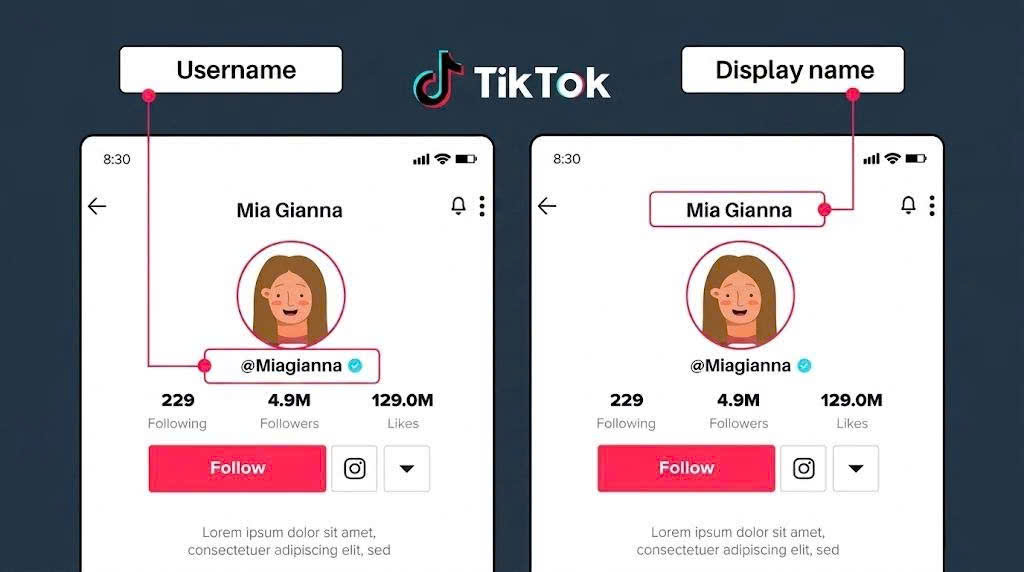
Changing your TikTok ID is usually restricted to a 7-day limit, which makes it difficult for many users to update their account name as desired or build a personal brand. During use, if you don’t fully understand TikTok’s rules or perform the steps incorrectly, you may easily face issues such as being unable to change the ID, receiving error messages, or failing to save updates. In some cases, the system may even reject the change without clearly explaining the reason, which can be quite confusing for users. Therefore, this guide will provide a detailed step-by-step explanation to help you change your TikTok ID correctly, minimize potential errors, and ensure your account remains stable after the update.
Understanding TikTok ID and the 7-day limit
A TikTok ID is a unique identifier for each account on the TikTok platform. It helps other users search for, follow, and recognize your account within the system. Each TikTok ID must be unique and cannot be duplicated by any other user.
When creating or changing a TikTok ID, users need to follow several basic platform rules, including:
-
The TikTok ID must be unique and cannot be used by another account
-
Only lowercase letters, numbers, and some special characters are allowed (no spaces)
-
The maximum length is usually 30 characters
-
Vietnamese accented characters are not allowed
In addition, TikTok may apply a short waiting restriction (commonly around 7 days for some accounts or system states) before allowing another ID change. This means users may need to wait a period of time before updating their TikTok ID again depending on account conditions.
Because of this limitation, many users find it difficult to update their ID quickly, especially those who are building a personal brand or need to make urgent changes to their account information.
Common Problems When Changing TikTok ID Too Early
When you try to change your TikTok ID before the waiting limit period, you may easily run into several issues due to TikTok’s restriction system. These problems can cause the update process to fail or make users think the account is experiencing an error.
Some common issues include:
-
The Save button is disabled or cannot be clicked: When you attempt to change your TikTok ID too early, the system may automatically lock the save function, preventing you from confirming the new information even if it is correctly entered.
-
An error message appears when confirming the change: In some cases, TikTok may immediately show an error when you try to save, informing you that you are not eligible to change your ID yet because the waiting period has not ended.
-
The new TikTok ID is rejected even if it is valid: Even if you enter a valid and available ID that does not violate any rules, the system may still refuse it due to the active restriction period.
-
Changes are not saved after editing: Sometimes you may edit your ID successfully, but after leaving and reopening the app, the old ID remains unchanged because the update was not recorded.
-
No clear error message, but the change still fails: In some cases, there is no specific error notification, which can make users think the app is bugging, while in reality the restriction period is still active.
These issues mainly come from TikTok’s policy to control how often account information can be changed, meaning that repeated attempts will not bypass the restriction system.
In addition, some users also turn to third-party TikTok tools such as SnapTik to save or review TikTok content more easily while managing and optimizing their account experience.
Step-by-Step Guide to Changing TikTok ID Before 7 Days
During TikTok usage, many users face situations where they cannot change their TikTok ID because the system is still applying a waiting period after the previous change. This can interrupt the process or prevent the new ID from being saved successfully.
Although there is no way to completely bypass TikTok’s restriction, you can apply several optimization tips below to help the system run more smoothly and reduce errors when editing your profile.
Step 1: Check and stabilize your device
Before attempting to change your ID, make sure your device is working properly:
-
Check your internet connection (stable WiFi or mobile data)
-
Ensure your TikTok app is updated to the latest version
-
Restart your phone if the app behaves abnormally
This helps reduce display errors or issues where changes are not saved.
Step 2: Check your device date & time settings
In some cases, system errors may be related to time synchronization on your device. You can check it by:
-
Going to Settings
-
Selecting Date & Time
-
Enabling automatic time update to ensure proper system sync
This helps reduce conflicts when TikTok verifies account changes.
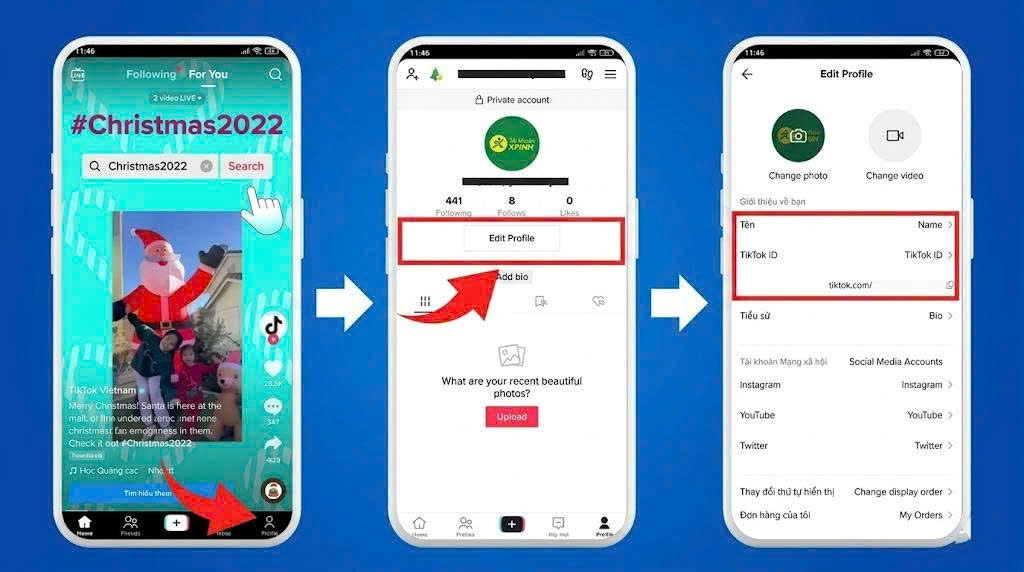
Step 3: Try changing your TikTok ID again
After checking your device, you can proceed with the ID change steps:
-
Open TikTok and go to your Profile
-
Select Edit Profile
-
Tap on TikTok ID
-
Enter a valid new ID (no accents, no spaces, and must be unique)
-
Tap Save to complete.
Changing your TikTok ID does not only depend on correct steps, but also on TikTok’s internal system rules. Instead of forcing the change, you should optimize your device, check settings, and try again at the right time to increase the success rate.
Tips to Reduce Errors When Changing TikTok ID
When changing your TikTok ID, especially before the 30-day limit, you may easily encounter errors due to system restrictions or incorrect formatting. To make the process smoother, you can apply the following tips:
-
Check the last ID change date carefully: Make sure that at least 30 days have passed since your previous change, as this is the most common reason for failure.
-
Prepare multiple TikTok ID options in advance: It is recommended to create 2–3 backup IDs in case your preferred one is already taken or invalid.
-
Follow TikTok’s ID format rules correctly: Use only lowercase letters, numbers, and underscores. Avoid spaces or unsupported special characters.
-
Update the TikTok app to the latest version: An outdated version may cause display errors or prevent you from saving changes.
-
Log out and log back in if errors occur: Signing out and re-entering your account can help the system refresh and properly process your changes.
Applying these tips can help you minimize errors when changing your TikTok ID and complete the process more smoothly and efficiently.
Important Notes After Changing Your TikTok ID
After successfully changing your TikTok ID, there are several important points you should keep in mind to avoid affecting your account usage and visibility on the platform.
-
Your TikTok profile link will change: Once your ID is updated, your profile URL will also change accordingly. This may affect any previously shared links.
-
Others may find it harder to locate your account: If you switch to a completely new ID, your existing followers may need to search again to access your profile.
-
Update your TikTok links on other platforms: If you have shared your TikTok link on Facebook, Instagram, or websites, make sure to update them to avoid broken or incorrect links.
-
Avoid changing your ID too frequently: Making too many changes in a short period may limit certain account features or confuse your audience.
-
Double-check your profile after updating: After making the change, review your profile to ensure the new ID has been saved correctly and displayed properly on the system.
Conclusion
Changing your TikTok ID before the 30-day limit is often restricted by the platform’s policies, which can lead to errors or unsuccessful updates. This can be especially challenging for users who are building a personal brand or need to update their account information within a short period of time. However, if you clearly understand the reasons behind these limitations, follow the correct process, and apply the tips shared in this guide, you can significantly reduce errors during the change. Careful preparation before updating your ID also helps save time and avoid repeated failed attempts. Hopefully, this guide helps you change your TikTok ID more quickly, accurately, and safely, while keeping your account stable and easy to manage in the long term.