Your TikTok name and ID are more than just account details - they are your digital identity on the platform. A well-chosen name can help you stand out, build a personal brand, and make your account more memorable to others. However, not everyone knows how to change their TikTok name and ID correctly or without confusion. In this guide, you’ll learn the easiest and most detailed steps to update your TikTok name and ID, whether you’re a beginner or an experienced user looking to refresh your profile.
Introduction to TikTok Name and TikTok ID
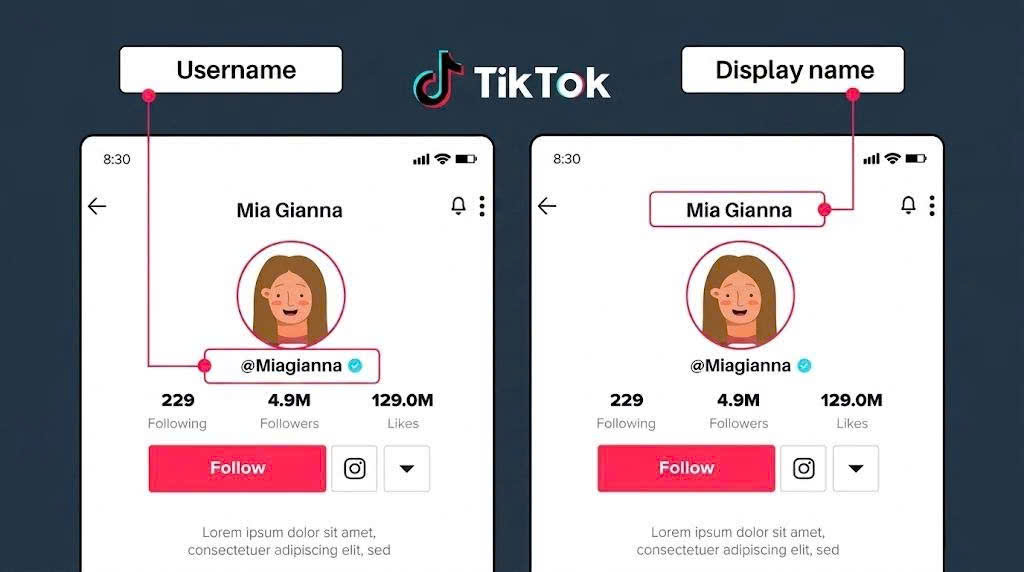
When using TikTok, every account has two important elements: the display name (TikTok name) and the username (TikTok ID). These are key details that help others recognize you on the platform and also directly affect how professional and memorable your profile appears.
Understanding the difference between these two elements will help you avoid confusion when making changes:
-
TikTok Name: This is the name shown on your profile. It can be changed easily and more flexibly. You can use special characters, emojis, or creative styles to make your profile stand out.
-
TikTok ID: This is your unique account identifier (e.g., @yourname). It is used for search, tagging, and sharing your profile link.
Users usually change their TikTok name or ID for several reasons:
-
Refreshing their profile to match a new content style
-
Building a personal brand or business identity
-
Improving recognition and memorability
-
Avoiding duplicate or similar usernames
However, not everyone fully understands how these changes work or the limitations involved. That’s why it’s important to clearly distinguish between the two before making any edits, to avoid affecting your account experience later on.
How to Change Your TikTok Name on Mobile Easily
Changing your TikTok name on a mobile phone is quick and simple. You can do it directly in the app without needing any additional tools or software.
Here are the step-by-step instructions:
-
Step 1: Open the TikTok app on your phone and go to your Profile in the bottom-right corner
-
Step 2: Tap on Edit profile
-
Step 3: Select the Name field to start editing
-
Step 4: Enter your new desired name
-
Step 5: Tap Save to confirm the changes
Once saved, your TikTok name will be updated immediately on your profile.
However, there are a few important things to keep in mind:
-
TikTok limits the number of characters in a name (usually up to around 30 characters)
-
You can only change your name once within a specific period (typically 7 days)
-
Your new name should be clear and easy to read so others can easily find and remember you
Changing your TikTok name on mobile is the most common method since it is fast, simple, and can be done anytime.
How to Quickly Change Your TikTok Name on Computer
Besides mobile devices, you can also change your TikTok name on a computer through a web browser. This method is useful when you are working on a PC or prefer a larger screen for easier navigation.
Here are the steps:
-
Step 1: Go to the TikTok website and log into your account
-
Step 2: Click on your profile picture in the top-right corner
-
Step 3: Select View profile
-
Step 4: Click Edit profile
-
Step 5: In the Name section, enter your new desired name
-
Step 6: Click Save to confirm the changes
Once saved, your new name will be updated across your TikTok profile.
A few things to keep in mind when changing your name on a computer:
-
The interface may look slightly different depending on the TikTok web version
-
The character limit for names is the same as on mobile
-
TikTok still applies the same time restriction for name changes
Changing your TikTok name on a computer is often preferred by users who want faster editing or manage multiple accounts at the same time.
How to Change Your TikTok ID Easily for Beginners
Your TikTok ID (username) is a unique identifier for each account, usually in the format @username. It is used for searching, tagging, and sharing your profile. Unlike your display name, your TikTok ID has stricter rules, so you need to follow the correct steps to avoid errors.
Here’s how to change your TikTok ID:
-
Step 1: Open the TikTok app and go to your Profile
-
Step 2: Tap Edit profile
-
Step 3: Select Username
-
Step 4: Enter your new desired TikTok ID
-
Step 5: Tap Save to confirm
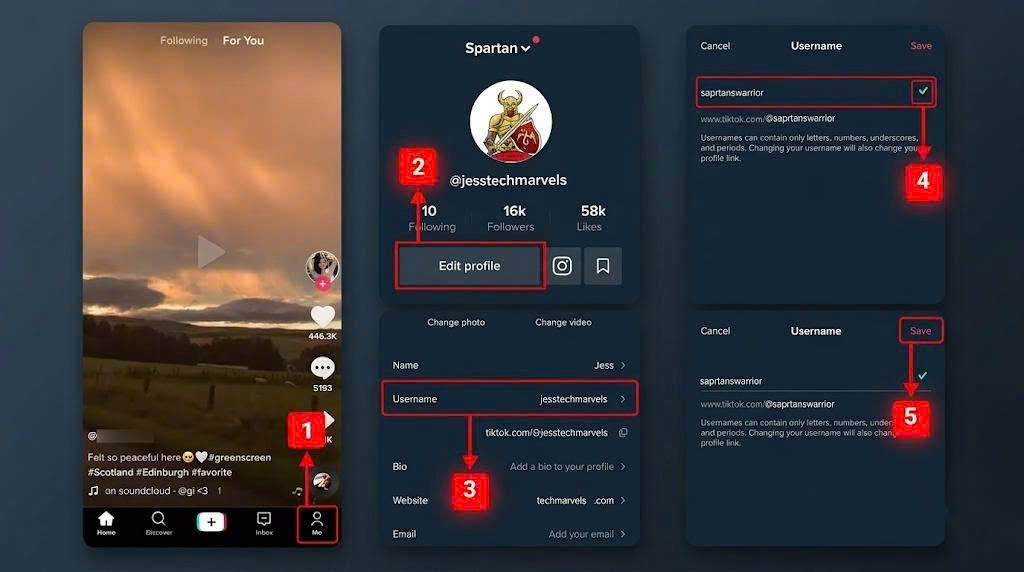
After updating, your profile link will also change according to your new ID.
Important notes when changing your TikTok ID:
-
The ID must be unique; if it is already taken, you cannot use it
-
No spaces or invalid special characters are allowed
-
TikTok only allows username changes after a certain period (usually 7 days)
-
Once changed, your old profile link will no longer work
Changing your TikTok ID helps you build a clearer personal identity, especially if you are developing a personal brand or growing a long-term content channel.
Common Errors When Changing TikTok Name and ID
During the process of changing your TikTok name or ID, users may encounter several common errors that prevent the update from being completed. Understanding these issues will help you fix them quickly and avoid repeated attempts.
In some cases, users also look for additional TikTok-related tools such as SnapTik to download videos without watermark or analyze trending content, which can help them better understand content performance and improve their overall TikTok strategy.
Here are the most frequent problems:
-
Unable to save changes: This may be caused by a weak internet connection or a temporary TikTok app error
-
Username already taken: The ID you selected is already used by another account
-
Change limit not reached: TikTok restricts how often you can change your name or ID (usually every 7 days)
-
Invalid name or ID: It contains unsupported special characters or exceeds the character limit
-
Outdated app version: An old version of TikTok may cause issues when editing profile information
If you encounter any of these issues, you can try:
-
Checking your internet connection
-
Choosing a different username or name
-
Updating TikTok to the latest version
-
Waiting until the restriction period is over and trying again
Being aware of these common errors helps you manage your account more smoothly and avoid unnecessary failed attempts.
TikTok Name Change Rules and Restrictions You Should Know
When changing your TikTok name or ID, you cannot customize it completely freely. You must follow certain platform rules. These limitations are designed to ensure system stability and prevent username spam.
Below are the important rules you should be aware of:
Time restriction for changes: You can only change your TikTok name or ID after a certain period (usually every 7 days).
Character limits:
-
Display names have a character limit (usually around 30 characters)
-
TikTok IDs also have a specific character limit that must not be exceeded
Allowed character rules:
-
Special unsupported characters are not allowed in usernames
-
No spaces are allowed in TikTok IDs
-
You can use letters, numbers, and some basic symbols like underscores (_)
Uniqueness requirement: Each TikTok ID must be unique. If the username is already taken by another account, you cannot use it.
In addition, when you change your TikTok ID, your old profile link will no longer work and will be replaced by the new one. Therefore, you should consider carefully before making changes to avoid affecting your profile sharing and recognition.
Should You Change Your TikTok Name Frequently?
Changing your TikTok name or ID can help refresh your profile and improve your personal branding. However, it is not always a good idea to change it too often. Frequent changes may make your account harder to recognize and reduce consistency in building your channel identity.
Here are situations when you should or should not change your TikTok name:
-
When you should change your name:
-
You want to rebrand your channel or change your content style
-
Your old name no longer fits your current direction
-
You want to build a clearer personal or business brand
-
When you should avoid changing your name:
-
You are building a stable channel with an existing audience
-
Changing too often makes it harder for viewers to remember you
-
You don’t have a clear reason for making the change
In addition, it is important to keep consistency between your TikTok name and your content to strengthen brand recognition. A stable, memorable, and relevant name will help you grow your channel more effectively in the long run.
Conclusion
Changing your TikTok name and ID is a simple but effective way to refresh your profile and build your personal image on the platform. With just a few basic steps, you can update your information to better match your style and content direction. However, you should also pay attention to TikTok’s rules such as time limits for changes, valid character usage, and the uniqueness of your ID to avoid errors during the process. Hopefully, this guide helps you make the changes easily and optimize your TikTok profile more effectively. If you find it helpful, don’t forget to apply it right away and check out other articles for more useful TikTok tips.