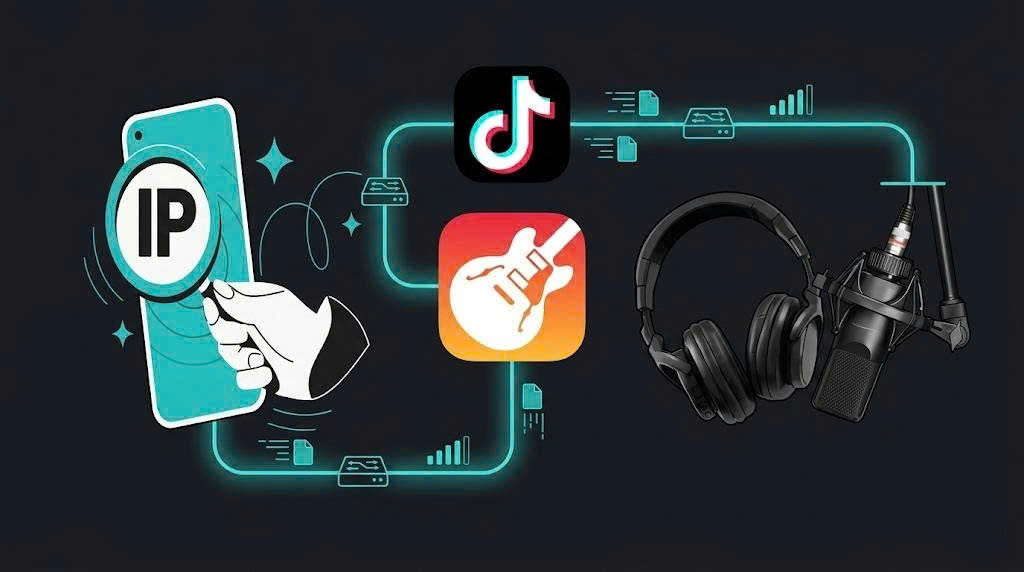
Do you often come across catchy sounds on TikTok and want to turn them into your iPhone ringtone but don’t know where to start? Many people think converting TikTok videos into ringtones is complicated and requires advanced tools or technical skills. However, it’s actually much easier than you think. With just a few simple steps, you can quickly transform any TikTok video into a custom ringtone for your iPhone. In this article, you’ll get a clear A-Z guide to do it easily right on your phone.
Why Use TikTok Videos as iPhone Ringtones
TikTok is not only an entertainment platform but also a huge source of viral audio, featuring trending music, remixes, and catchy sound bites. That’s why many iPhone users choose to turn TikTok videos into ringtones to create a more personalized phone experience.
Here are the main reasons why this method has become so popular:
-
Personalize your ringtone style: You no longer have to stick with boring default iPhone ringtones.
-
Stay updated with trends: Easily use viral TikTok sounds as your ringtone.
-
Short, catchy, and easy-to-remember audio: Perfect for ringtone use without being too long.
-
Show your personality: Your ringtone reflects your personal taste every time someone calls.
-
Easy access to trending content: TikTok provides countless popular audio clips to choose from.
Thanks to these advantages, turning TikTok videos into iPhone ringtones has become a popular trend among young users today.
Things You Need Before Getting Started
Many users use SnapTik to download TikTok videos without watermark before converting them into ringtones, as it makes the process faster and more convenient.
Before you start converting TikTok videos into ringtones for iPhone, you need to prepare a few basic tools to ensure everything runs smoothly without errors.
-
iPhone (compatible iOS version): The device used to create and set the ringtone
-
TikTok app: To choose the video with the audio you want
-
Online MP4 to MP3 converter: To extract audio from the video
-
GarageBand: The app used to create and export ringtones on iPhone
-
Stable internet connection: Helps speed up downloading and file conversion
Once everything is ready, you can move on to the next steps to easily create a TikTok ringtone on your iPhone.
Things You Need Before Getting Started
Step-by-Step Guide to Create a Ringtone from TikTok Videos
Now that you’re ready, follow these step-by-step instructions to convert any TikTok video into a ringtone on your iPhone, from downloading the video to setting it as your incoming call sound.
Step 1: Download the TikTok Video to Your iPhone
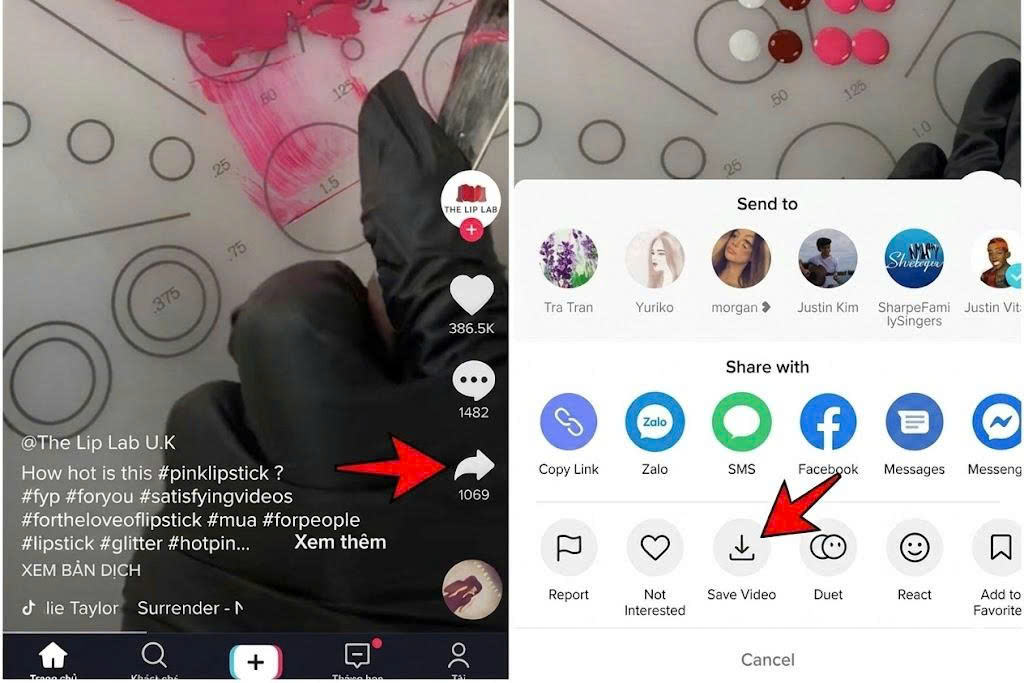
To start creating a ringtone from TikTok, the first thing you need to do is download the video to your iPhone. This step is important because it gives you the original file needed for extracting audio in the next steps.
Here are the steps:
-
Open the TikTok app and find the video with the sound you want to use
-
Tap the Share button on the right side of the screen
-
Select Save video
Once completed, you now have the video on your device and are ready to move on to the next step of extracting the audio.
Step 2: Convert the Video into an MP3 File
After downloading the TikTok video to your iPhone, the next step is to extract the audio from the video and convert it into an MP3 file. This is an important step because the iPhone does not allow you to directly use video files as ringtones. By converting the video into audio format, you can easily use it in GarageBand or other ringtone-making apps. Once you have the MP3 file, you can trim your favorite part and set it as your ringtone.
Steps to follow:
-
Open Safari or Chrome on your iPhone
-
Go to an online file conversion website for example CloudConvert
-
Select the MP4 to MP3 conversion option
-
Tap Upload file and choose the TikTok video you saved earlier
-
Wait for the system to process and upload the file
-
Once finished, click Convert to start converting the video to MP3
-
After conversion is complete, tap Download to save the MP3 file to your iPhone
Once done, you will have the audio file ready and can move on to the next step of creating your ringtone using GarageBand.
Step 3: Create a Ringtone Using GarageBand
After you have the MP3 audio file extracted from the TikTok video, the next step is to use GarageBand to create a ringtone on your iPhone. This app allows you to edit, trim, and export audio as a ringtone directly on your device in a simple way.
Steps to follow:
-
Open the GarageBand app on your iPhone
-
Choose Audio Recorder or create a new project
-
Tap the Track view icon to enter the editing interface
-
Tap the Loop icon and select the MP3 file from Files
-
Drag the audio file into the GarageBand timeline
-
Trim the audio to your desired length (usually 15–30 seconds)
-
Tap the Share icon and choose Ringtone
-
Name your file and tap Export to save the ringtone
Once completed, your TikTok ringtone is ready and can be used directly on your iPhone.
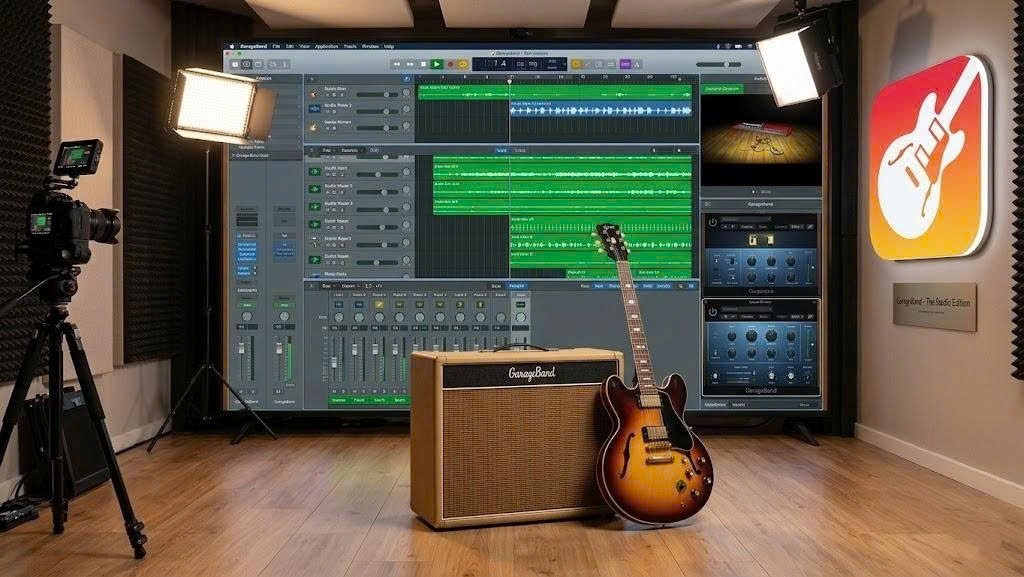
Use GarageBand to create a ringtone on your iPhone
Step 4: Set TikTok Audio as Your iPhone Ringtone
Once you have successfully created your ringtone using GarageBand, the final step is to set it as your default ringtone on iPhone so you can use it for incoming calls.
Follow these steps:
-
Open Settings on your iPhone
-
Go to Sounds & Haptics
-
Tap on Ringtone
-
Select the ringtone file you just created in GarageBand
-
Go back to save your settings automatically
After completing these steps, your iPhone will now use your newly created TikTok ringtone for incoming calls.
Tips for Choosing a Good Ringtone Sound
Not every TikTok sound is suitable for use as an iPhone ringtone. Choosing the right audio can significantly improve your calling experience and make your ringtone more enjoyable and recognizable every time someone calls you.
To pick the most suitable sound, here are some important tips to consider:
-
Choose short and memorable clips (around 15–30 seconds) to match ringtone duration and avoid repetitive boredom
-
Prioritize sections with strong highlights (hooks or drops) as they create the most impact when a call comes in
-
Avoid long intros or slow-paced beginnings, as they reduce the ringtone’s catchiness
-
Make sure the audio is clear and free from noise or distortion for better listening quality in any environment
-
Prefer trending TikTok sounds, so your ringtone stays modern, fresh, and relevant
Selecting the right audio not only makes your iPhone ringtone more unique but also helps express your personal style every time you receive a call.
Common Problems and How to Fix Them
When creating a ringtone from TikTok videos on iPhone, you may sometimes run into small issues during the process. Don’t worry - most of them are easy to fix if you know the cause.
Here are some common problems and solutions:
-
GarageBand doesn’t import the MP3 file - Make sure the file is saved in the Files app and not only in browser downloads. Try moving it to iCloud Drive or On My iPhone.
-
The ringtone doesn’t appear in Settings - Check again if you exported the file correctly as a Ringtone from GarageBand, not just an audio project.
-
Audio is too long or gets cut off - iPhone ringtones usually work best at 15–30 seconds, so trim the clip before exporting.
-
Video conversion fails (MP4 to MP3) - Refresh the page, check internet connection, or try another converter tool.
-
No sound or low-quality audio - Re-download the TikTok video in higher quality and convert again.
By solving these small issues, you can easily complete the process and enjoy your custom TikTok ringtone on iPhone without any problems.
Conclusion
Turning TikTok videos into iPhone ringtones is a simple and creative way to personalize your device with the sounds you love. Instead of using default ringtones, you can now choose any trending or favorite TikTok audio and turn it into a unique ringtone in just a few steps. By following the step-by-step process from downloading the video, converting it to MP3, creating a ringtone with GarageBand, to setting it in iPhone settings you can easily complete everything without advanced technical skills. With this method, your iPhone becomes more personal, fun, and aligned with your own style every time a call comes in.